Google reviews
Read and answer Google Business Profile reviews in the Inbox, with an AI-suggested reply.
When your Google Business Profile is connected, its reviews appear in the Inbox next to your comments, so you can answer them in one place.
Which plan: Individual, Team, Agency and Enterprise. The Free plan can't connect Google Business Profile.
Google reviews switch on once Google approves Social9's access to the Business Profile API. Until then Inbox → Setup shows Waiting for Google approval, and this page describes how it will work.
Where to find it#
Dashboard → Inbox, then set the type filter to Reviews.
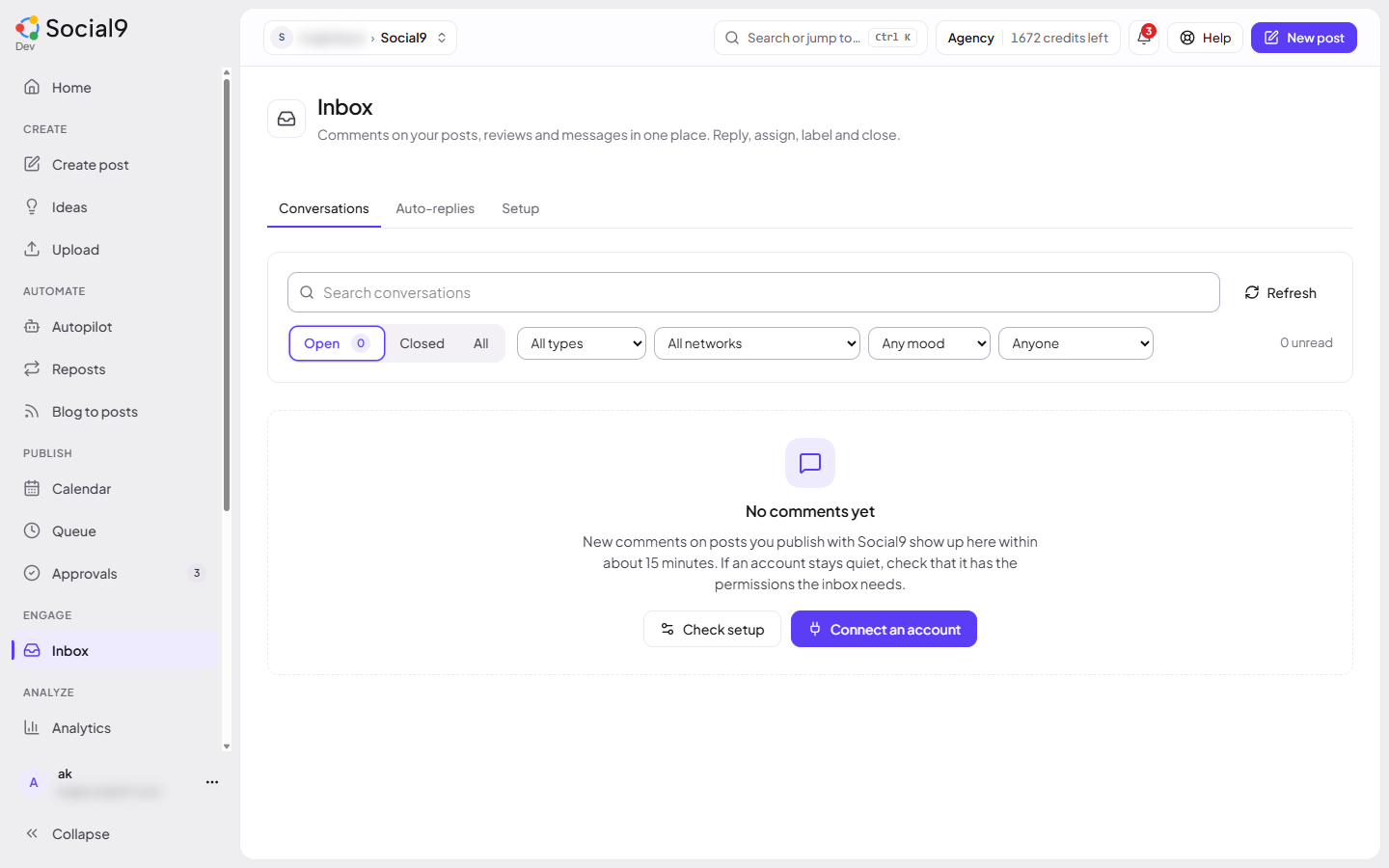
Each review shows its stars. Reviews of 1 or 2 stars are marked Negative, 4 or 5 Positive.
How to reply to a review#
- Open the review.
- Press Suggest a reply for an AI draft, or write your own. The draft thanks the person, never makes promises and never invents facts.
- Press Reply publicly. Your reply shows under the review on Google Search and Maps.
Good to know#
- You need the location connected on Channels (Google Business Profile).
- Google must approve Social9's Business Profile access first. No reviews show until then.
- A review has one reply. Sending again replaces it.
- Replies you made directly on Google also appear here.
- Suggest a reply uses AI credits, the same as writing one post.
- You need permission to publish for that brand (Owner, Admin or Editor).