Reports and your branding
Build a report, share a live link or a PDF, email it every week or month, and show your own logo and colour to clients.
On this page
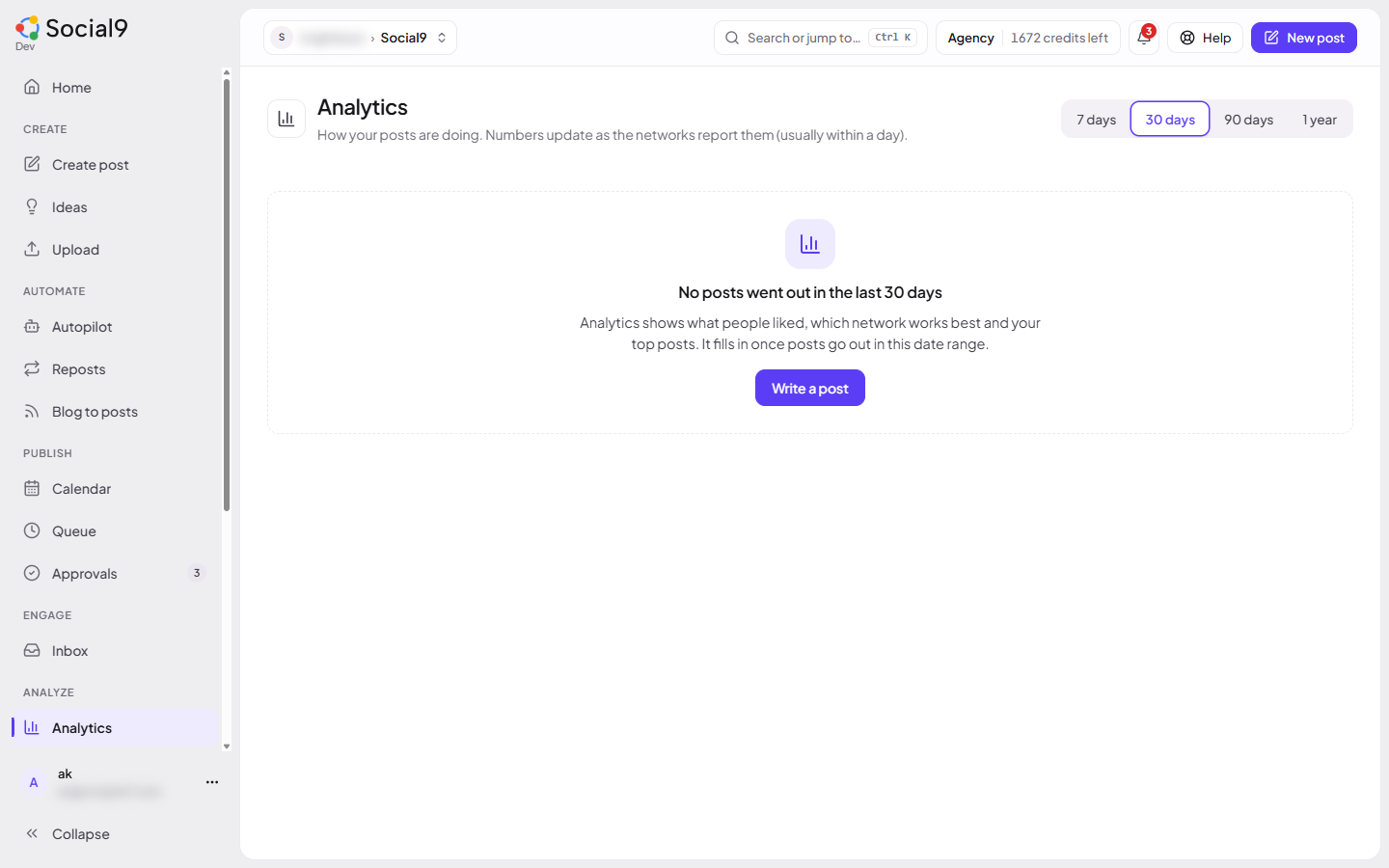
Reports show what you posted and how it did, on a page you can send to a client.
Which plan: Reports are on Team, Agency and Enterprise. Your branding is on Agency and Enterprise.
Where to find it#
Dashboard → Agency → Reports and Dashboard → Agency → Your branding. Anyone who can see analytics can build and preview reports. Share links and email schedules are for owners and admins.
How to build a report#
- Under New report, type a Name.
- Tick the Brands to include. None ticked means every brand.
- Pick the Period: the last 7, 14, 30, 90, 180 or 365 days. The report always shows the most recent period when someone opens it.
- Tick the Sections you want (see the table below).
- Press Save report. Press Preview to see it.
| Section | Shows |
|---|---|
| Summary numbers | Posts published, impressions, engagements, engagement rate |
| Daily trend | Engagements per day |
| By network | Posts and results per network |
| By account | Posts and results per connected account |
| Top posts | The 5 posts with the most engagement |
| All posts | Every published post in the period |
| Posting goals | Each brand's weekly goal and streak. See Goals and streaks |
How to share a live link#
- Under Saved reports, press Share link on a report.
- Press Copy link and send it. No login is needed to open it.
The link works for 30 days and always shows the latest numbers. It is shown only once. Press Turn off next to a link to stop it.
How to save it as a PDF#
- Press Open printable / PDF after making a link, or open the report link and press Save as PDF.
- Your browser's print window opens. Choose Save as PDF as the printer.
The page is laid out for A4 paper.
How to email it every week or month#
- Press Email schedule on a saved report.
- Tick Email this report automatically.
- Under How often, pick Weekly (and the day) or Monthly (and the day of the month), then the Hour (workspace time).
- Type up to 10 email addresses, separated by commas.
- Press Save schedule.
Each email has its own link to the live report, which works for 30 days.
How to set up your branding#
Your branding (formerly White-label) puts your company name, logo and colour on the pages your clients see: client review links, shared reports, report emails and client connect pages.
- Go to Agency → Your branding.
- Fill in Company name, Brand colour and Logo URL (https) (a full
https://link to an image). - Optional: tick Hide “Made with Social9”.
- Press Save branding.
Good to know#
- Numbers come from the networks and can lag by about a day.
- How far back a report can go depends on your plan's analytics history: Free 30 days, Individual 90 days, Team and Agency 365 days, Enterprise 730 days.
- Posts made in test mode never count.
- Without your branding, client pages show your brand name with Social9 branding.
- On lower plans, the tabs show a Team plan or Agency plan badge and an Upgrade button.
- Connected AI assistants can build reports with
report_createand get a link withreport_link. See Tools reference.