Connect your accounts
How to connect each social network to a brand, how many accounts your plan allows, and how Social9 keeps an eye on them.
On this page
A connected account is where your posts go. Each account belongs to one brand.
Where to find it#
Dashboard → Channels. Pick the brand at the top of the page first.
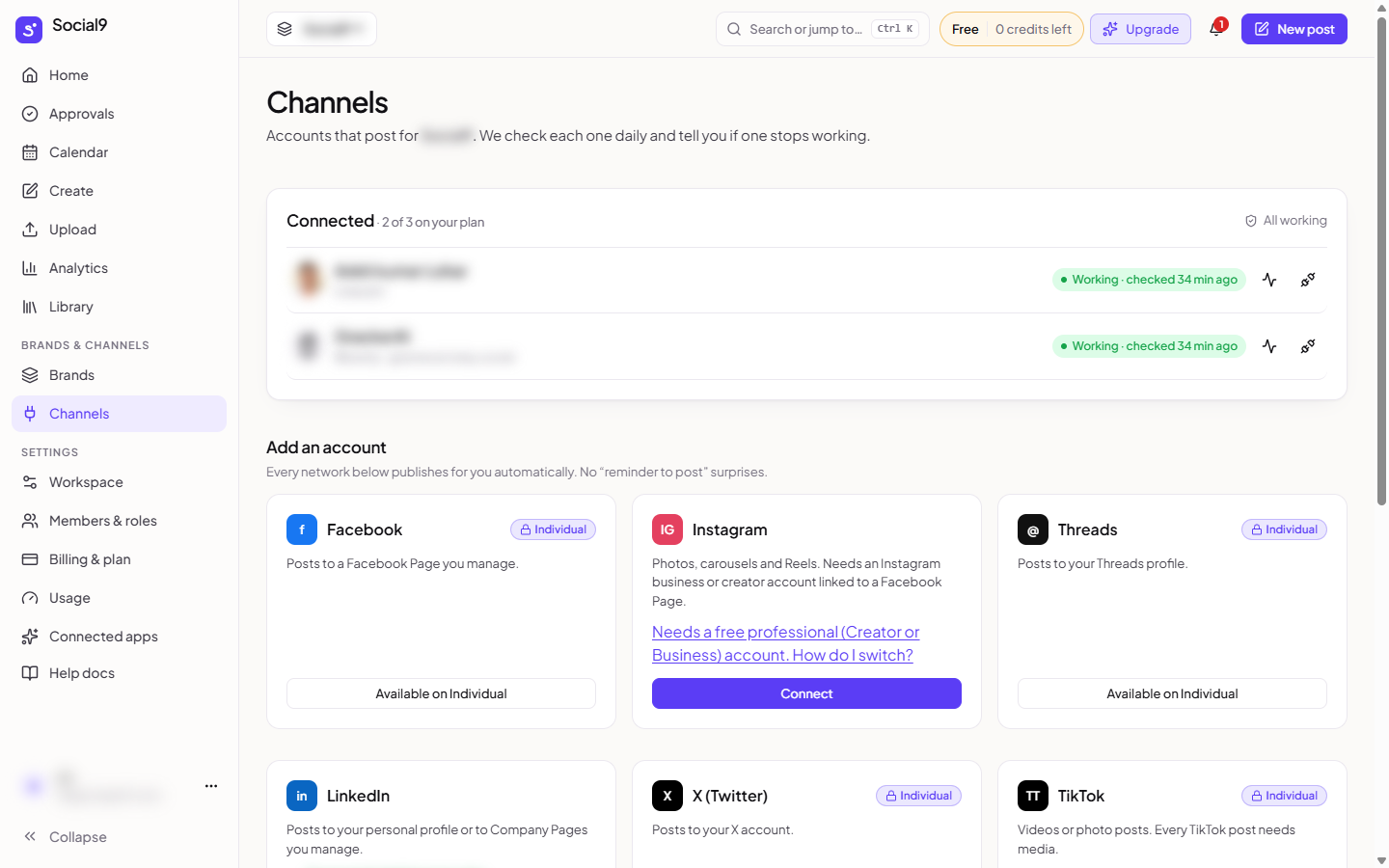
The page lists the accounts already connected to this brand. Press Connect Channel to open a window with a tile for every network you can add.
Connecting an account#
- Find the network's card and press Connect.
- Sign in to the network in the window that opens, and allow Social9 to post.
- You come back to the Channels page. The account now shows under the brand.
Most networks take under a minute. Social9 only asks for permission to publish and to read results.
When a login has several pages#
Some logins give Social9 access to several pages or channels at once, for example a LinkedIn login that manages many Pages, or a Google login with several YouTube channels. When that happens, Social9 connects nothing yet. A window called Choose what to connect lists the new accounts.
- Tick the accounts you want in Social9.
- Press Connect (for example Connect 2 selected).
Accounts that were already connected stay exactly as they are. If you close the window, nothing is connected. The list is kept for 30 minutes. After that, press Connect on the network again.
Two networks work differently:
| Network | What you type instead |
|---|---|
| Bluesky | Your handle and an app password. See Bluesky |
| Mastodon | Your server, for example mastodon.social. Then you sign in there. See Mastodon |
A network that is not switched on yet shows Coming soon on the Channels page. Every network that is on has a normal Connect button.
Some networks have rules about the kind of account you connect. Read the network's page before you start: Instagram needs a professional account, Facebook posts to Pages only, and LinkedIn has a separate button for Company Pages.
Who can connect accounts#
Owners and admins. If you are an editor, approver or viewer, ask one of them to connect the account for you.
How many accounts your plan allows#
| Plan | Networks | Accounts per brand | Accounts in total |
|---|---|---|---|
| Free | LinkedIn, Mastodon, Bluesky (Instagram coming soon) | 3 | 3 |
| Individual | All live networks | 3 | 3 |
| Team | All live networks | 3 | 9 |
| Agency | All live networks | 5 | 25 |
| Enterprise | All live networks | Unlimited | Unlimited |
On the Free plan, the other networks show a lock with Individual, the plan that unlocks them. When you reach your limit, the page offers Get more accounts.
We check every account daily#
Once a day, Social9 makes one small read-only check on each account. It never posts and never reads your feed.
| You see | What it means | What to do |
|---|---|---|
| Connected | The last check worked | Nothing |
| Disconnects soon | The network's login runs out within two days | Press Reconnect before it does |
| Needs reconnect | The login stopped working | Press Reconnect. Posts to this account wait until you do |
If an account stops working, you get a banner in the dashboard, a note in the bell, and an email. Posts to that account are on hold, not lost. Reconnecting takes about a minute.
Channel settings#
Press the gear on a connected account to open its settings. There are two tabs.
| Tab | What it holds |
|---|---|
| Posting Schedule | Time Zone (it follows your workspace time zone). Posting Goal, how many posts a week this brand aims for. Posting slots: the weekdays and times the queue uses for this account. Generate New Posting Slots fills them in for you, and Add a new posting time adds one. Press Save times to keep your changes |
| General | The account's status, Reconnect, and Remove channel |
Removing a channel#
Press the ⋮ menu on the account on the Channels page and choose Remove channel. Or open the account's settings, go to General and press Remove channel. Social9 asks you to confirm.
Scheduled posts to that account will not go out. Your page on the network is not touched, and your past posts and their history stay.
Only owners and admins can remove channels.
Next steps#
- Get your first post out
- Networks: what each network supports, and its rules