Inbox
See and answer comments on your posts, Google reviews and messages in one place. Assign, label and close conversations.
On this page
The Inbox collects what people say to your brands in one list, so nobody has to check every app.
Which plan: All plans.
Where to find it#
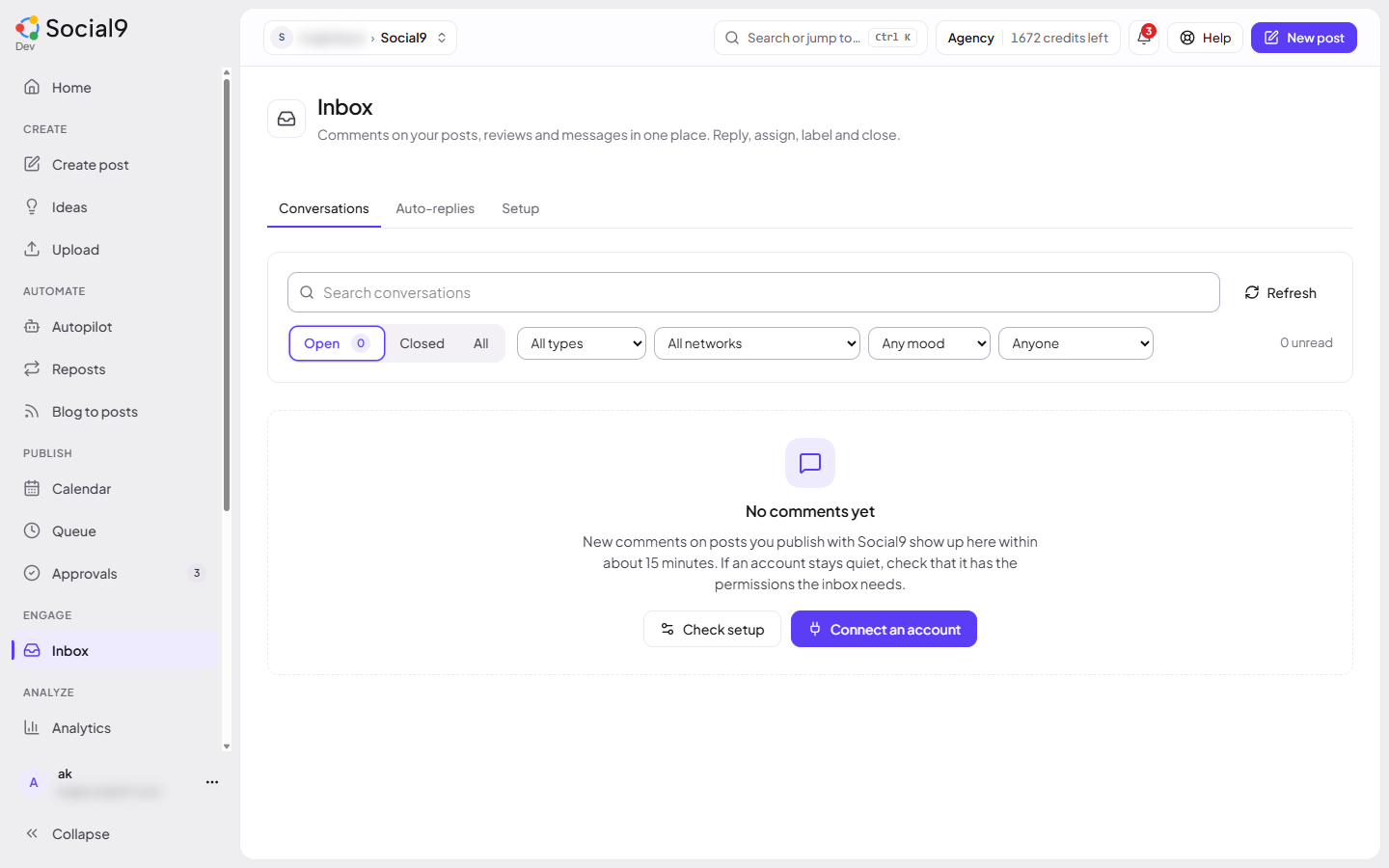
Dashboard → Inbox. It has three tabs: Conversations, Auto-replies and Setup.
It shows the brand picked at the top of the page, or every brand you can see.
How to reply to a comment#
- Open Conversations and pick a conversation.
- Write your reply, or press Suggest a reply to let the AI draft one in your brand voice. Read it and change it before you send.
- Press Reply publicly.
Your reply is posted from the brand's connected account, as a reply to the comment. For a direct message the button is Send message.
How to organise conversations#
| Action | How |
|---|---|
| Assign | Pick a teammate in the Unassigned list. Filter the list with Assigned to me |
| Label | Type labels separated by commas, for example sales, support |
| Mood | Positive, Neutral, Negative or Question. The AI sets it when it suggests a reply; you can change it |
| Close | Press Close when it's done. A new comment opens it again. Press Reopen to open it yourself |
Use the filters at the top (All types, All networks, Any mood, Anyone) and Search to find a conversation.
What shows up#
- Comments on posts you published with Social9 in the last 14 days. Each top-level comment is one conversation; replies to it stay inside it.
- Google reviews for your Business Profile locations, once Google approves access. See Google reviews.
- Direct messages from Instagram and Messenger, once Meta approves messaging. See Comment-to-DM.
Comments on posts you published outside Social9 don't appear.
Good to know#
- New comments arrive within about 15 minutes. Press Refresh to check now.
- Suggest a reply uses AI credits, the same as writing one post.
- To reply you need permission to publish for that brand (Owner, Admin or Editor). To assign, label or close you need permission to edit posts.
- Facebook and Instagram: the account must be connected with permission to read and manage comments. Direct messages also need Meta's approval; until then Setup shows Waiting for Meta approval.
- Google reviews need your Google Business Profile connected and Google's approval (Waiting for Google approval until then).
- X replies only show once X replies are switched on, which needs a paid X API plan (Needs a paid X API plan until then). Each reply you send on X counts as an X post.
- LinkedIn only lets apps read comments on Company Pages, not personal profiles.
- Threads needs a reconnect to give the new comment permissions.
- A network stays quiet? Open Inbox → Setup. For each account it shows whether reading comments and replying work, and which permission is missing. Reconnect the account on Channels to give it.
- The Free plan can connect LinkedIn, Instagram, Mastodon and Bluesky only. Paid plans add the other networks.