Link in bio
Make one public page for the link in your Instagram, TikTok or X bio, with your buttons and a grid of your latest posts.
Most networks give you one link in your bio. Link in bio turns it into a page with all your links and your latest posts.
Which plan: All plans.
Where to find it#
Dashboard → Link in bio. Each brand has one page.
How to set it up#
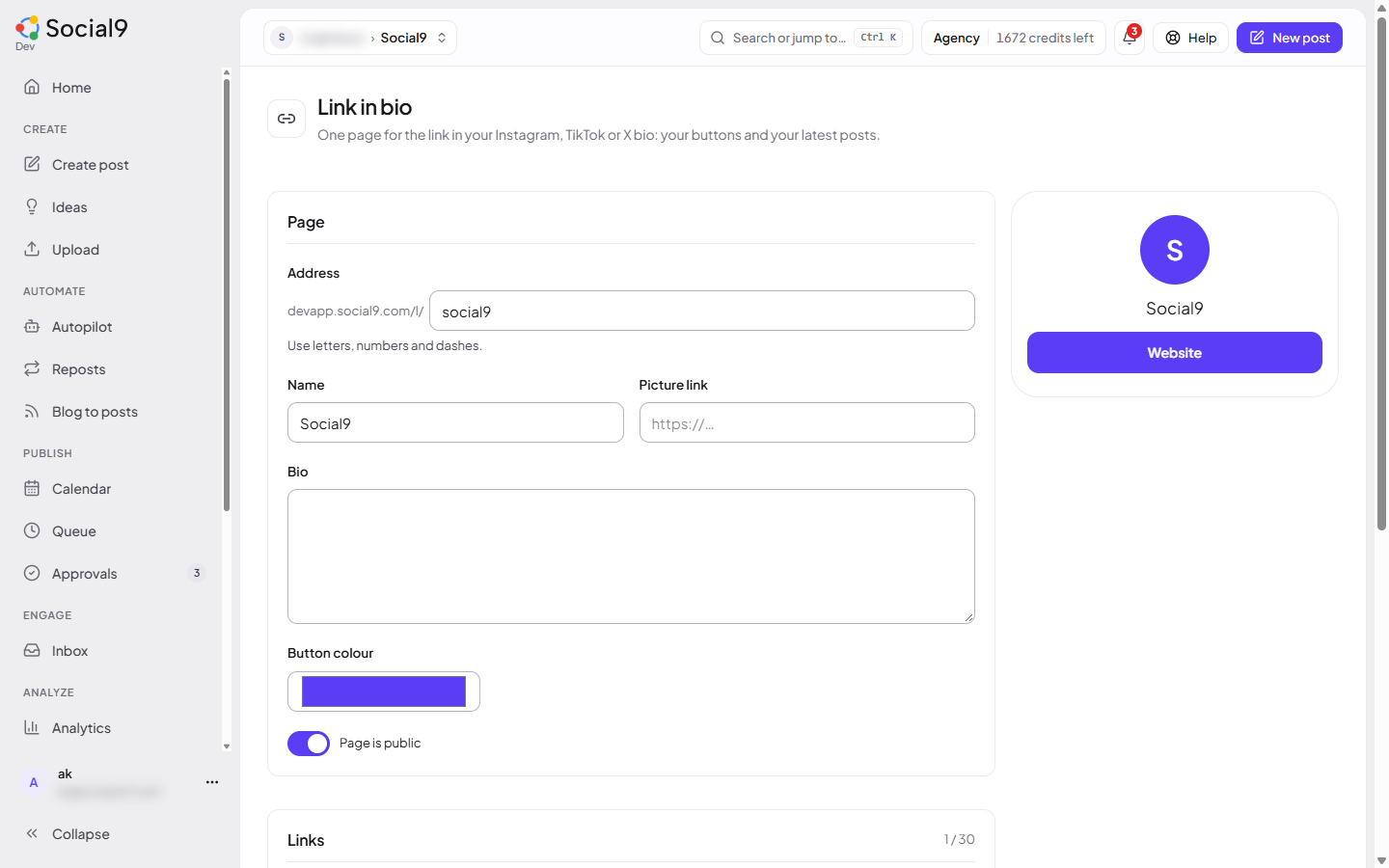
- Pick the Address (letters, numbers and dashes). Your page lives at
/l/your-addresson your Social9 app address. Each address can be used once. - Add your Name, a Picture (https link) and a short Bio.
- Under Links, press Add link. Give each one a label and a link, and pick its style: Button or Text link. Use the arrows to change the order, and the switch to hide one.
- Turn on Show latest posts if you want a grid of posts you published with a photo. Choose How many. Each tile opens the post, or a link you set, such as the product page.
- Pick a Button colour if you like.
- Press Create page, then Copy link and paste it into your bio.
To change the page later, edit it and press Save changes.
Clicks and views#
The page shows the last 30 days: Page views, Clicks, Click rate, What people click, Where from (the website only, such as instagram.com) and Country when the hosting provider shares it.
Good to know#
- Switch Page is public off to take the page down without losing it.
- It counts only. It never stores names, IP addresses or cookies.
- Only posts you published with Social9 that have a photo can appear in the grid.
- You need permission to edit the brand (Owner, Admin or Editor) to change the page.
- No network approval is needed. It works the same for every network's bio.