Templates
Start a post from a ready-made template, fill in the blanks, make it sound like your brand, and keep your own templates.
On this page
Templates are ready-made posts you can start from. Pick one, and it opens in Create with the text filled in.
Which plan: All plans. Make it mine and Templates written for your brand use AI credits.
Where to find it#
Dashboard → Create → Templates. The Create pages have three tabs at the top: Ideas, Templates and Blog to posts.
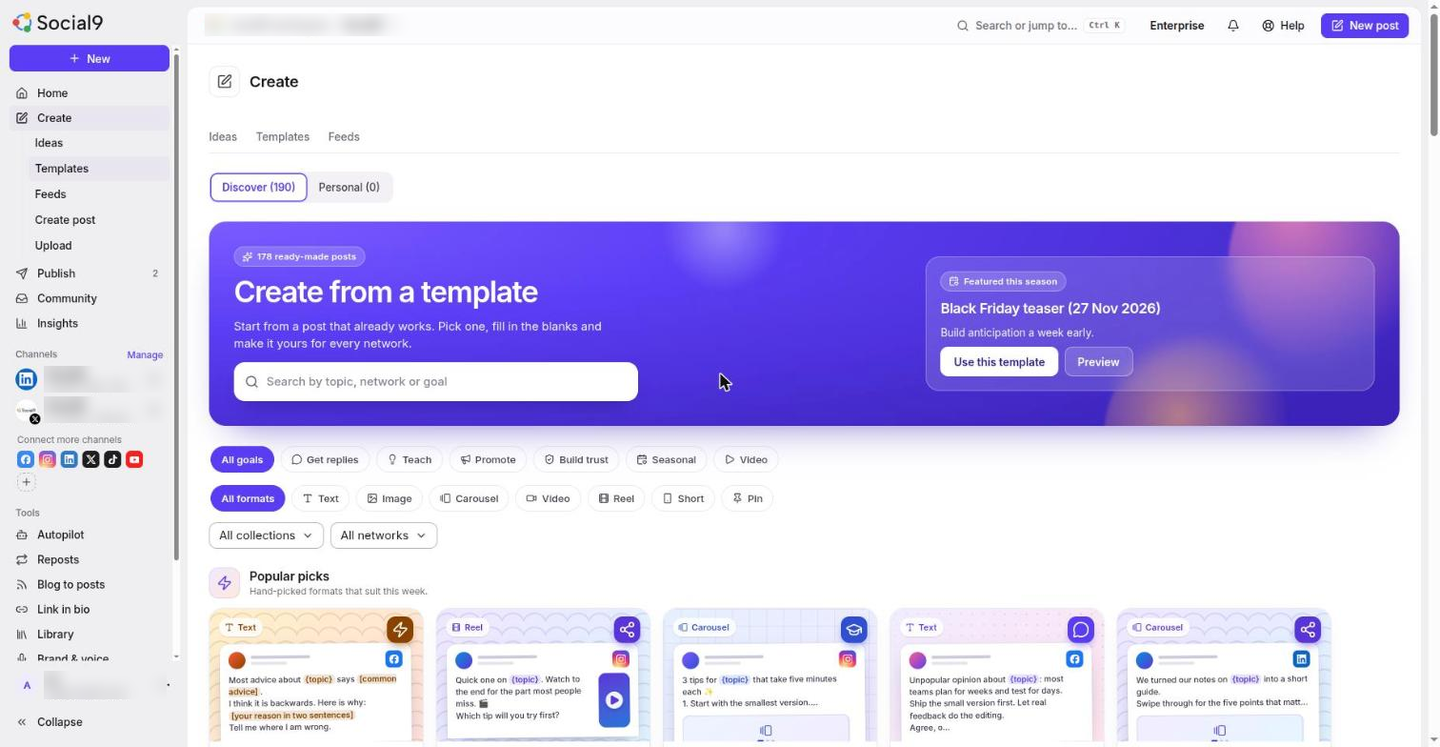
There are two lists:
| Tab | What it holds |
|---|---|
| Discover | 158 templates from Social9, in 12 collections |
| Personal | Templates you saved for this brand |
The 12 collections#
| Collection | What it is for |
|---|---|
| Start a conversation | Posts that get people replying |
| Teach something | Share what you know |
| Promote your work | Product, service and feature posts |
| Behind the scenes | Show the people and the process |
| Social proof and testimonials | Let happy customers speak |
| Launches and announcements | News, events and openings |
| Offers and sales | Promotions with a clear reason to act |
| Holidays and seasons | November 2026 to March 2027, ready to fill in |
| Industry packs | Starting points for software, agencies, shops, cafes, gyms, property, coaches, local trades and nonprofits |
| Network packs | Written for LinkedIn, X, Instagram, Pinterest, YouTube, Google Business, Bluesky and Mastodon |
| Hooks and openers | First lines that earn the second line |
| Calls to action | Ask for the next step clearly |
A Featured this season card shows at the top when a holiday is close.
How to use a template#
- Open Create → Templates.
- Find one. Type in Search templates, or narrow the list with Collection, Network, Goal and Format. Press Clear filters to start again.
- Press Use on a template (or Use this template in its preview). The Create Post window opens with the text filled in. Your brand name is put in for you where the template has one. Fill in anything else in curly braces, such as a topic.
- Change the text, pick your accounts and schedule as usual. See Create a post.
The ⋮ menu on a card has more choices:
| Choice | What it does |
|---|---|
| Copy text | Copies the text |
| Make it mine | The AI rewrites the template in your brand voice for a network you pick. Uses AI credits |
| Save to Personal | Keeps the text in your Personal tab |
Templates written for your brand#
On Discover, the Templates written for your brand box has a Write templates button. Social9 writes 12 post formats in your brand's voice. It uses 4 credits.
Your own templates#
Open the Personal tab and press New Template. Give it a Title and the text, then Save. Use the pencil to edit one, or the bin to delete it. Personal templates belong to one brand.
They are the same as Saved snippets in Create. See Create a post.
Ideas#
Templates give you a shape for a post. The Ideas board is for topics you want to post about. You can use both: pick an idea, then start from a template.