Calendar
See every planned and posted Social9 post in Month, Week, Day or Queue view, drag posts to new days, move posts in bulk and spot good times to post.
On this page
The calendar shows every post that is planned or posted, on its day, for the brand you picked in the switcher at the top.
Where to find it#
Dashboard → Publish, then press Calendar (next to List) at the top.
Times are in the timezone of the brand you picked (shown on the globe button at the top of Publish). A brand uses the workspace timezone unless it has its own. With All brands picked, the workspace timezone is used. Press the globe button to change it. See Timezones.
Schedule a post and see it on the calendar#
- Press New post (top right), or the + on any day in the calendar. Create opens with that day filled in.
- Pick the channels and write the post. Press the clock button at the bottom and choose Custom time and date to set the time.
- Press Schedule post. You land back on the calendar and the post is on its day.
Each post on the calendar shows an icon for each network it goes to (up to three, then +2 or more), the time, and the start of the text. Hover over the time to see how many accounts the post goes to. Click a post to open and edit it.
The four views#
Switch views with the View menu at the top: Month, Week, Day or Queue. Use the arrows to move back and forward, and Today to come back.
Month#
The whole month at a glance. Each day shows up to three posts; click the date (or + more) to open that day.
Week#
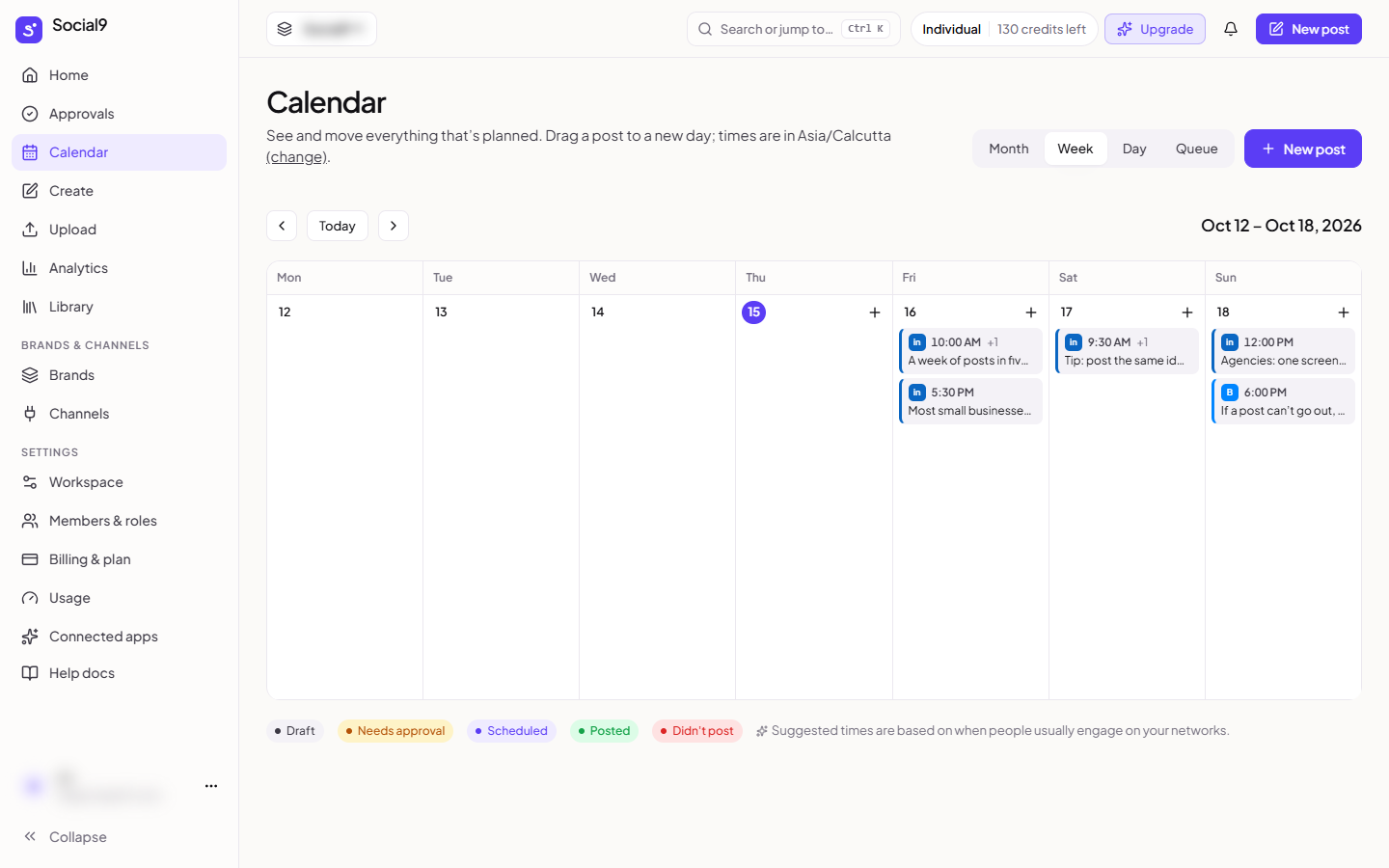
Seven days side by side, with every post of each day. Each post shows the logo of every network it goes to, then its time. A tick means it has been posted.
Day#
One day, hour by hour. Empty slots marked Good time to post are good times for your networks. Click an hour to write a post at that time.
Queue#
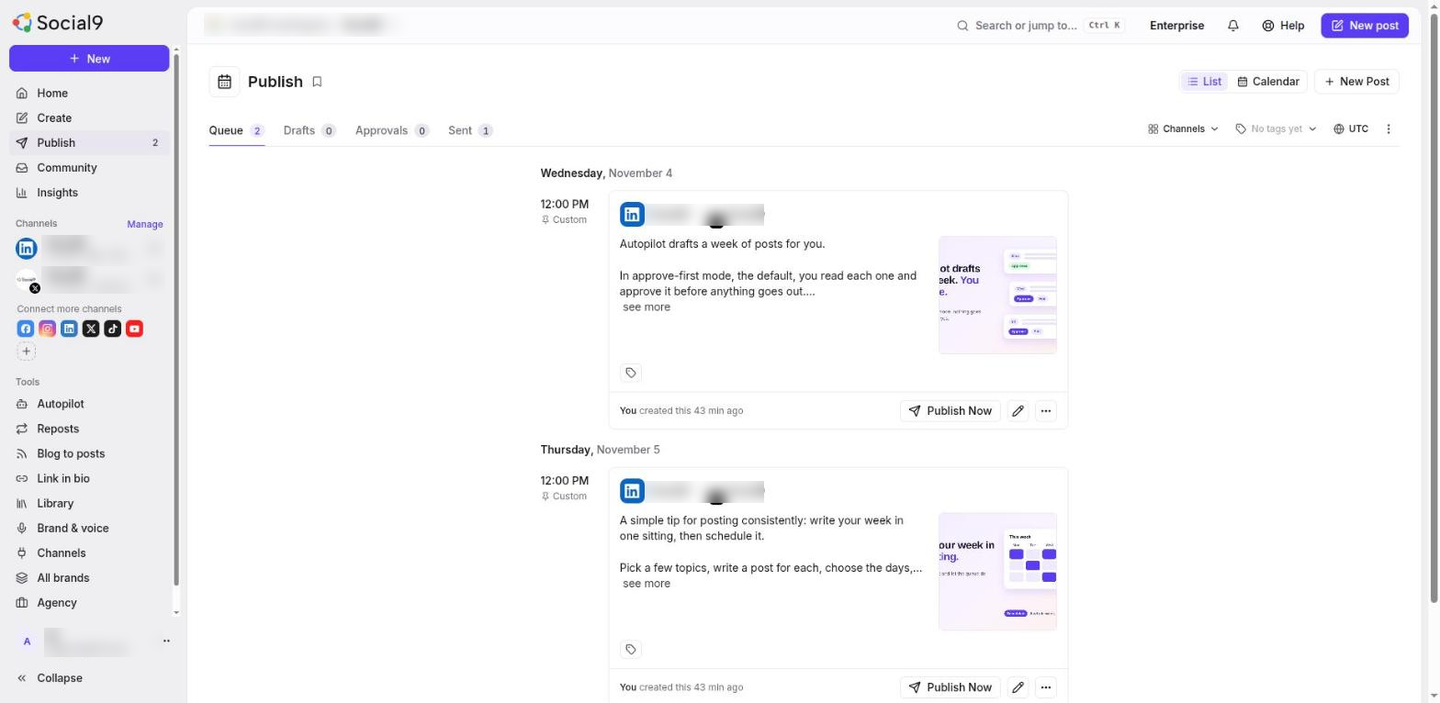
Everything coming up in one list, with the full text, the status and the accounts. Tick posts to move or delete several at once.
What you can do#
| To | Do this |
|---|---|
| Move a post | Drag it to a new day. Posted posts cannot be moved |
| Add a post on a day | Press the add button on that day. Create opens with the date filled in |
| See a posted post live | Click it. Posted posts show a tick |
| Fix posts that didn't post | Press Review and retry |
| Move or delete several | Select them, then Move to a date, or Delete drafts |
Only drafts can be deleted in bulk.
Good times to post#
Some slots are marked Good time to post. They are based on when people usually engage on the networks you have connected. Social9 uses the same times when you press a suggested time in Create, or Schedule all at best times in Upload.