Posting queue
Set your weekly posting times once, then press Add to queue and Social9 puts each post in the next free time.
On this page
The queue saves you picking a time for every post: set your weekly times once, and each queued post takes the next free one.
Which plan: All plans. On Free, up to 10 scheduled posts can wait per account at a time.
Where to find it#
Dashboard → Publish → Queue → Posting times, for the brand picked in the switcher at the top.
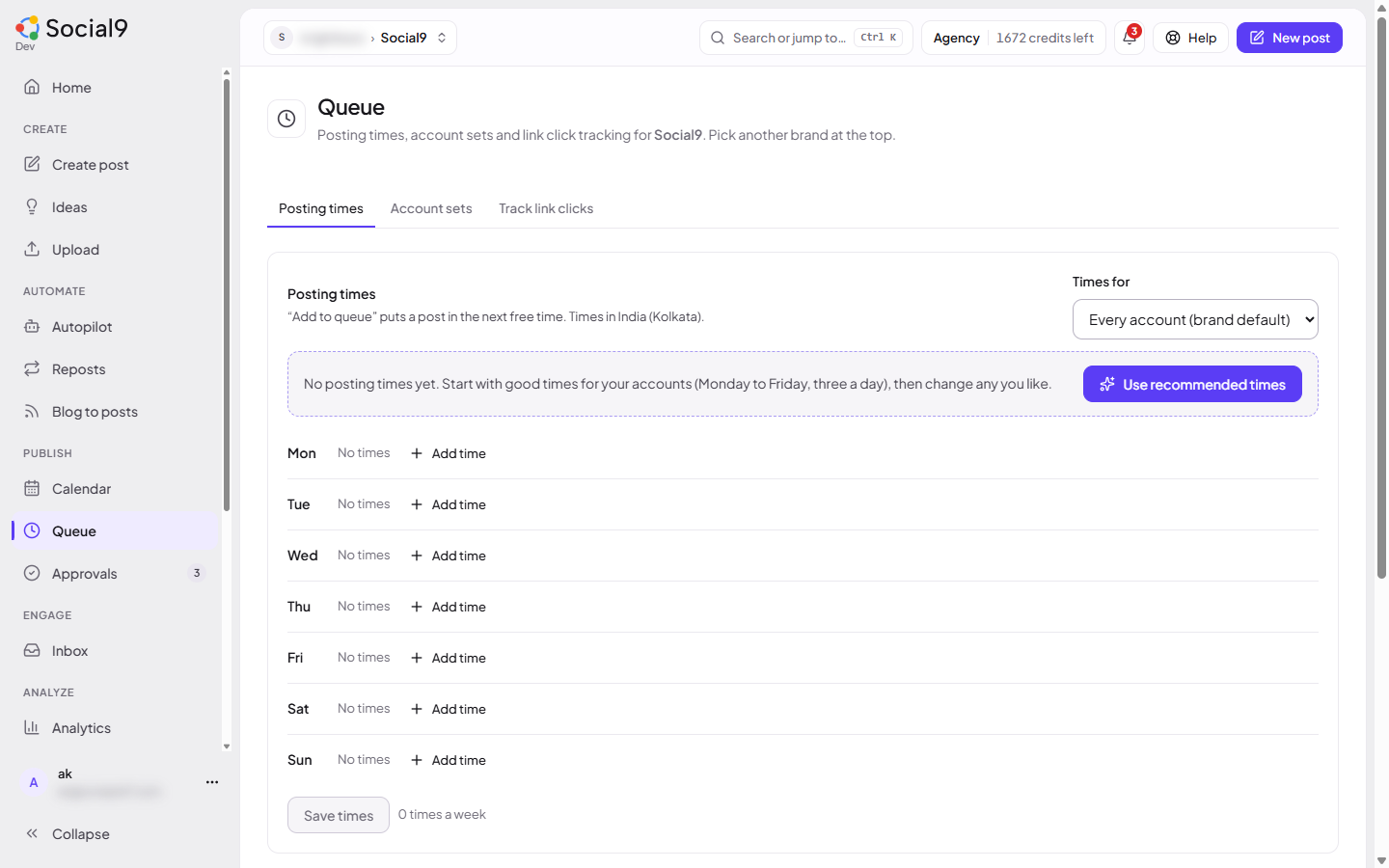
The Queue page has three tabs: Posting times (this page), Account sets (saved sets of accounts) and Track link clicks (UTM tags). Reposts and Blog to posts have their own pages under Automate.
How to set your posting times#
- Open Queue → Posting times.
- No times yet? Press Use recommended times to start with good times for your accounts (Monday to Friday, three a day), then change any you like. Or:
- Next to a day, press + Time, pick the time and press Add.
- To use one day's times Monday to Friday, press Copy to weekdays on that day.
- Press Save times. (Undo changes throws away what you haven't saved.)
Brand times or one account's times#
Under Times for, choose what you are editing:
- Every account (brand default): used for all the brand's accounts.
- One account: that account's own times, used when a post goes only to that account. Leave them empty to use the brand times.
How to add a post to the queue#
- Open Create and write your post.
- Pick the accounts.
- Press Add to queue instead of picking a time.
Social9 finds the first posting time where none of those accounts already has a post, and schedules it there.
How to change the order#
Under Waiting in the queue you see every queued post with its time.
- Move to top gives the post the first time; the others move down one time each.
- Move to bottom gives it the last time; the others move up.
The times stay the same; only the order of the posts changes.
Good to know#
- Times are in the brand's timezone, shown above the times, for example Times in India (Kolkata). A brand uses the workspace timezone unless you give it its own (Edit profile → Timezone). See Timezones. Times stay at the same local hour when the clocks change.
- You can have up to 70 times a week.
- No posting times yet? Add to queue asks you to set them up first.
- If every time in the next 8 weeks is taken, you see Every queue time in the next 8 weeks is taken. Add more times, or pick a time by hand.
- Queued posts are normal scheduled posts. They show on the calendar and you can drag them to another time.
- The usual checks apply: the accounts must be connected and the text must fit each network.
- Anyone whose role can schedule posts can change the times (Owner, Admin and Editor by default).
- On paid plans, connected AI assistants can use the queue too:
queue_slots_get,queue_slots_setandqueue_add. See Tools reference.