Let clients connect accounts
Send a client a link so they connect their own social accounts to a brand, without a Social9 login and without sharing passwords.
On this page
Let clients connect accounts (formerly Client Connect) lets your client connect their own social accounts to one of your brands, so you never need their password.
Which plan: Agency and Enterprise.
Where to find it#
Dashboard → Agency → Let clients connect accounts. Pick the brand in the switcher at the top first. Only owners and admins can make invite links.
How to send an invite#
- Optional: type a Client name (optional). It greets them on the page.
- Pick how long the link Works for (1 to 30 days, 7 by default).
- Press Create invite link, then Copy link, and send it to your client.
The link is shown only once. If you lose it, make a new one.
What your client does#
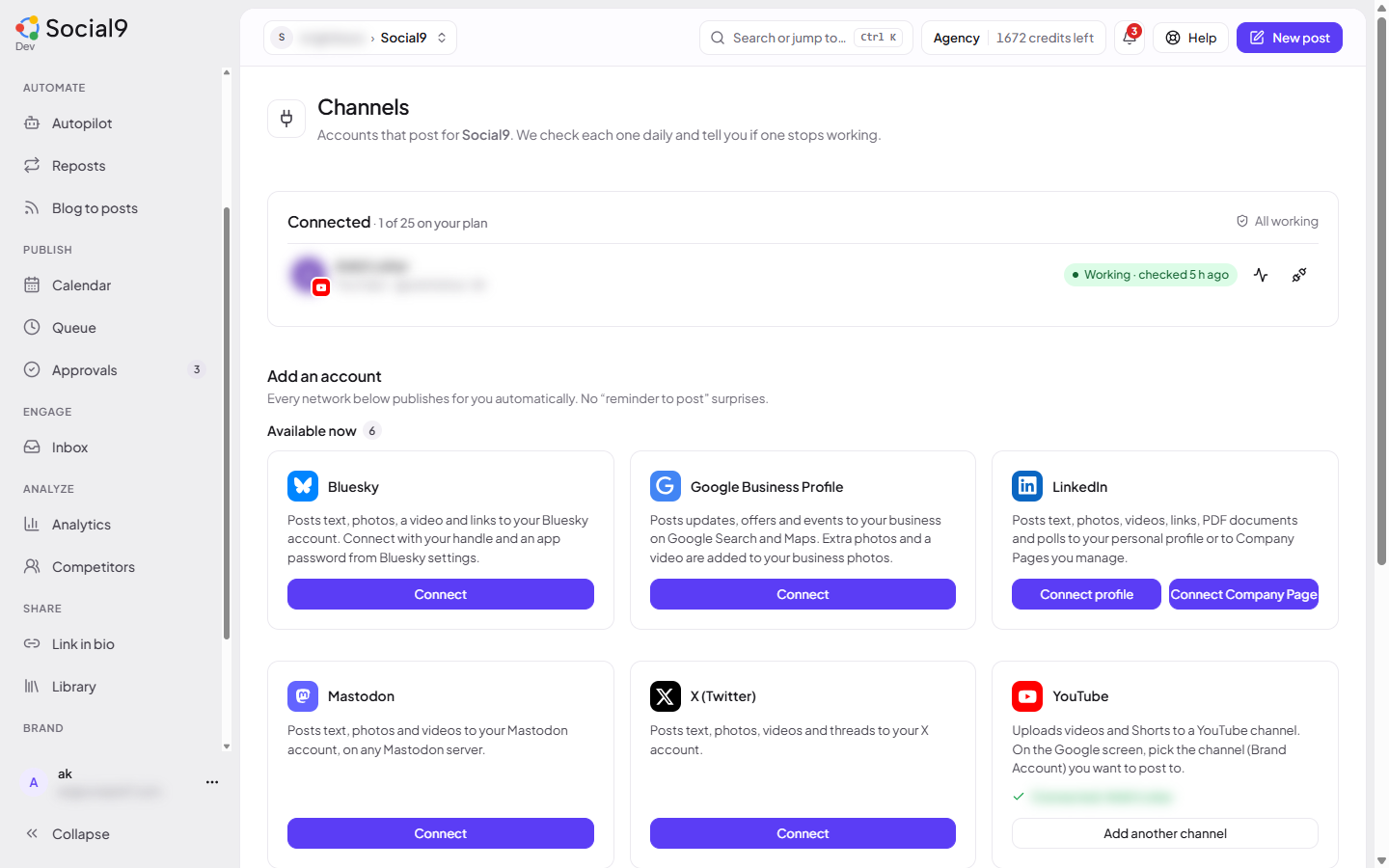
- They open the link and see the networks they can connect.
- They press Connect on a network, sign in on that network's own page and allow access.
- They come back to the link and see the account under Connected through this link.
For Bluesky they type their handle and an app password. For Mastodon they type their server first. For LinkedIn they can connect a profile or a Company Page, if both are set up.
How to turn an invite off#
Press Turn off next to the invite. The link stops working at once. Accounts already connected stay connected. Remove them on the Channels page if you need to.
Good to know#
- Accounts are added to the brand you made the link for, just as if you had connected them on the Channels page.
- Your plan's account limits still apply. If the brand is full, your client sees a message and nothing is added. You can add extra channels for $4/month each.
- Agency → Let clients connect accounts lists each invite, whether it is active, and how many accounts were connected through it.
- On lower plans, the tab shows an Agency plan badge and an Upgrade button.