Create a post
Write a post in Social9's Create window: pick channels, add media, polls or first comments, tailor each network, then queue it, schedule it or ask for approval.
On this page
The Create Post window is where you write one post and send it to one or more of your accounts.
Which plan: All plans. Ask for approval needs Team, Agency or Enterprise.
Where to find it#
Press New post at the top of any page, New in the left menu, or Create → Create post. The Create Post window opens over the page you are on.
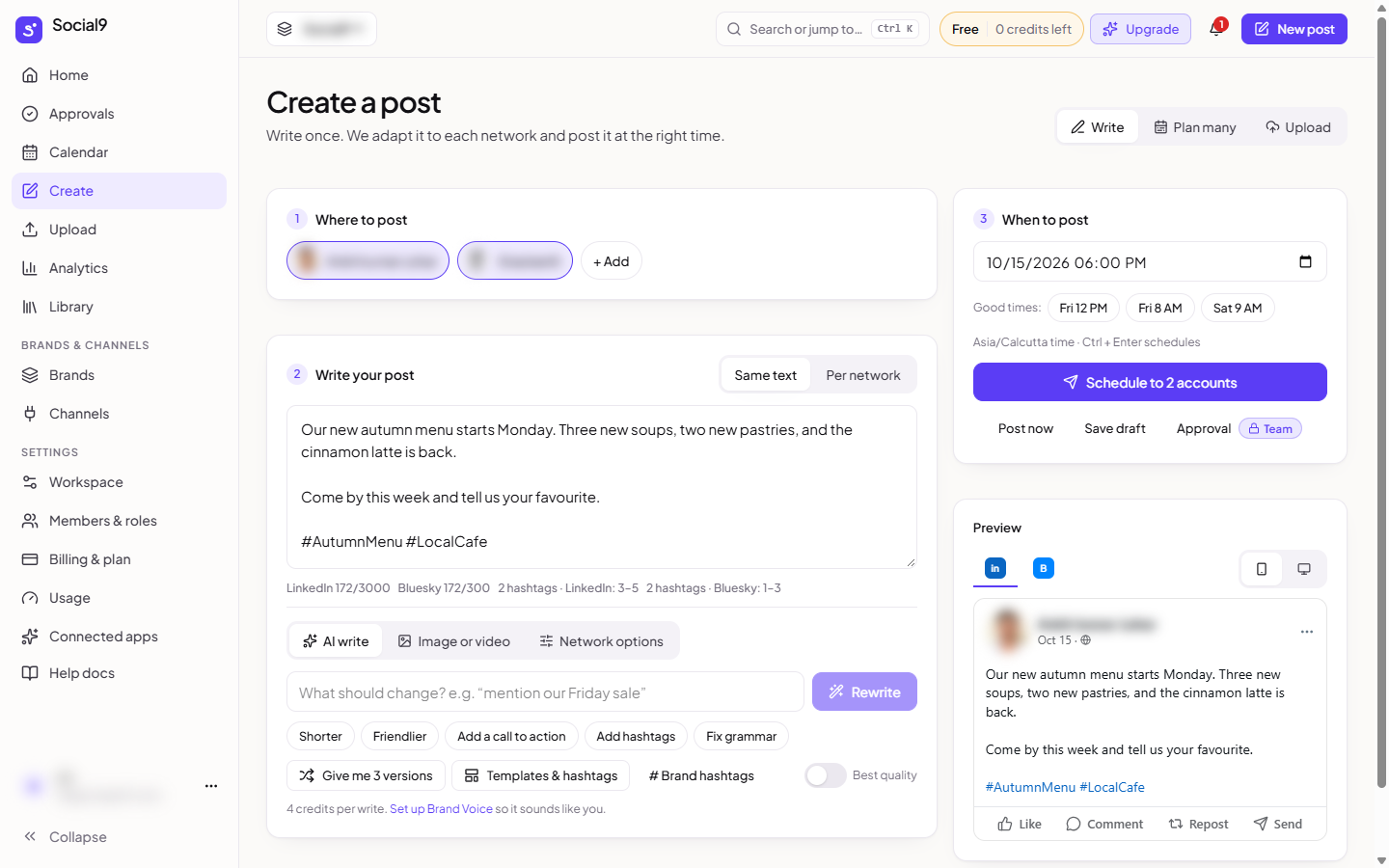
The window has two sides:
- Left: your channels, the text box, media, the character counters and the Add row.
- Right: Post Previews, which shows how the post will look on each network. Press Preview at the top to hide or show it.
At the top you also find Tags, Templates (start from a ready-made post, see Templates), AI Assistant and a button to make the window larger or smaller.
To change a post you already made, open its … menu and choose Edit. A post that is already posted cannot be changed.
How to create a post#
- Pick your channels. Your channels show as small round pictures at the top. Click one to tick or untick it. To take one off this post, hover over it (or tab to it) and press the small cross. This only removes it from this post. The channel stays connected. Clear all unticks everything, Save as group saves the ticked channels as a set you can reuse (see Channel groups), and + opens the Channels page to connect another.
- Write. Type your post in the big text box, or press Templates to start from one. Below the box, the emoji, # and @ buttons add emoji, hashtags and mentions, and Saved snippets adds text you use often. Under that, a counter for each network shows how many characters it allows, for example X 120/280.
- Add media (optional). Drop photos or a video into the box, press Create image with AI, Choose from media to use a file you already uploaded, or Paste a link. Some networks need media. A message under the buttons tells you which, for example "YouTube needs a video." See Images and video.
- Add extras (optional). The Add row has buttons for a poll, a PDF, a link, a thread or a first comment. See below.
- Check the preview. The right side shows the post on each network.
- Choose when it goes out and send it. See When it goes out below.
The Add row: polls, PDFs, links and more#
Under the text box there is a row called Add. It has buttons for the extras a post can have:
| Button | Works on |
|---|---|
| Poll | LinkedIn, X and Mastodon |
| Link | LinkedIn, Facebook and Threads |
| Thread | X, Threads, Bluesky and Mastodon |
| First comment | LinkedIn, X, Facebook, Instagram and YouTube |
| Reel | Facebook and Instagram |
| Story | Facebook and Instagram |
- A button only shows when at least one account you ticked supports it. Tick a LinkedIn account and PDF appears.
- When you have ticked more than one network, each button also lists the networks it applies to.
- Press a button to turn the extra on. Its fields open in that network's tab (see Options per network), where you fill them in.
- Press the small cross next to a button that is on to remove the extra again.
- A button is greyed out when the post can't take it right now. Hover over it to read why, for example "LinkedIn polls can't have photos or video. Remove the media to add a poll."
Short tips and problems for the extras that are on show right under the row.
When it goes out#
At the bottom of the window, the button with a clock shows when the post will go out. Press it to change that:
| Choice | What happens |
|---|---|
| Next Available | Goes out at the brand's next free queue time. This is the default. The main button says Add to queue |
| Custom time and date | Pick the date and time. The main button says Schedule post |
| Ask for approval | Sends the post to Approvals instead. It needs Team, Agency or Enterprise |
Times are in the brand's timezone, or the workspace timezone if the brand has none of its own. See Timezones.
The other buttons at the bottom:
| Button | What it does |
|---|---|
| Save Draft | Keeps the post as a draft under Publish → Drafts. Nothing is sent |
| Customize for each network | Opens a tab for each network, so you can change the text or set options for just that network (see below) |
| Create Another | Tick it and the window opens again, empty, after you send a post |
If your role can't schedule posts, you only see Save Draft and Ask for approval.
Things to fix before you can post#
Social9 checks your post before it lets you send it. Next to Save Draft, a box shows what is still needed, for example 1 step to go or 3 things to fix. Press it to open the list, then press a line to jump to the part to fix.
The usual ones:
- Pick at least one account to post to.
- Write something or add an image or video.
- The text is too long for a network. Shorten it, or write a shorter version for that network.
- A network needs a photo or video, or takes fewer images than you added.
- A required option is missing, for example who can see a TikTok post.
Fix what it says, or untick that channel.
Different text for each network#
By default every network gets the same text. Press Customize for each network to change that. You get a tab for each network beside All networks. Leave a tab empty to use the main text there. Each tab also has that network's own options, such as a first comment, a Reel or a YouTube title. See Options per network. Press Back to return to the main text.
Saved snippets#
Saved snippets, under the text box, holds text and hashtags you use often for this brand. Press one to add it to your post. Saved snippets are your own words. They are different from Templates, which are ready-made posts.
Good to know#
- On the Free plan, each account can have up to 10 posts waiting in the queue at once. Paid plans have no limit.
- AI writing uses credits.
- Each network needs the channel connected and working. Reconnect greyed-out channels on the Channels page.